
Playbooks
Reusable workflows that capture how work gets done.
Playbooks
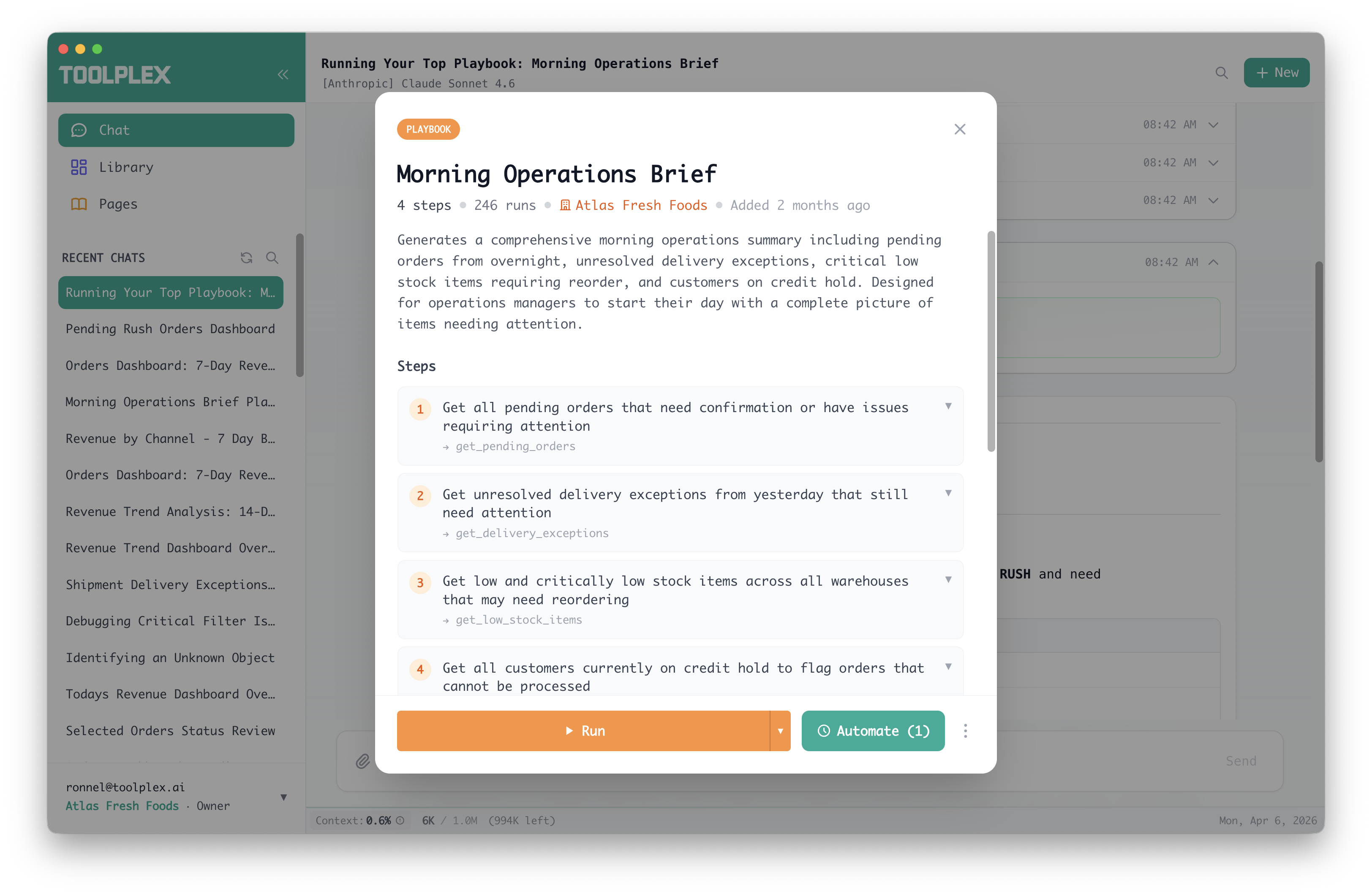
Playbooks are reusable workflows that your AI agents can follow. They capture multi-step processes — like generating a weekly report, onboarding a customer, or syncing data between systems — so the work can be repeated consistently.
How playbooks are created
Playbooks are generated automatically when you use ToolPlex. As you work with AI agents in chat, the agent may produce a playbook that captures the workflow it just performed. This happens in the background — you don't need to do anything special.
You can also create playbooks manually from the Playbooks panel.
Read-only mode
If you don't want agents to generate playbooks or feedback during a session, enable Read-Only Mode in your settings. This disables all automatic content creation.
Privacy levels
Every playbook has a privacy level that controls who can see and use it.
Private — Only you can see it. Not visible to your organization or other users.
Organization — Visible to all members of your organization. Useful for sharing standard operating procedures across your team.
Public — Discoverable by all ToolPlex users. Public playbooks go through automated screening for PII and secrets before publication. Sensitive details are redacted automatically.
You can change a playbook's privacy level at any time from its detail view.
Running a playbook
- Find the playbook in the Playbooks panel or via search
- Click the playbook card to open its details
- Click Run
This opens a new chat session with the playbook's workflow loaded as context. The AI follows the playbook's steps using the tools available to you.
Referencing playbooks in chat
Type @ in the chat input and search for a playbook by name. Selecting it inserts a reference that gives the AI context about that workflow without running it directly.
Automating a playbook
To run a playbook on a schedule or via webhook:
- Open the playbook detail view
- Click the Automate button
- Follow the automation wizard
The automation is pre-filled with the playbook name and linked to it. When the automation triggers, the AI executes the playbook's workflow automatically.
You can view all automations linked to a playbook from its detail view.
Playbook details
Each playbook shows:
- Name and description
- Actions — the tools and steps the workflow uses
- Usage count — how many times it's been run
- Created / updated timestamps
- Creator — shown for organization playbooks
- Community feedback — upvotes, downvotes, and comments from users
Organization playbooks
When you're part of an organization, playbooks marked as Organization are shared with your team. This lets you build a library of standard workflows that anyone on the team can run.
Your admin controls who can create organization playbooks through role permissions.
| Permission | What it allows |
|---|---|
| Create playbooks | Create private playbooks |
| View org playbooks | See organization playbooks |
| Create org playbooks | Create playbooks shared with the team |