
Organizations
Set up your team with roles, approved tools, and shared workflows.
Organizations
Organizations let you manage a team on ToolPlex with shared tools, playbooks, and AI settings. Admins control what the team can access, and every action is logged.
Creating an organization
Create an organization from the ToolPlex Desktop app. Once created, you'll be the Owner with full control over settings and membership.
Your organization gets a Scope ID visible in the Org Settings panel. This ID is used for API integrations and publishing custom tools.
Inviting members
- Go to the Team panel in ToolPlex Desktop
- Enter the person's email address
- Choose a role from the dropdown
- Click Send Invite
Invitees receive an email with an invite link. Pending invites are visible in the Team panel and can be cancelled before acceptance.
You can invite up to 10 recipients at a time.
Roles and permissions
ToolPlex has four built-in roles, plus support for custom roles.
Built-in roles
| Role | Description |
|---|---|
| Owner | Full control. Can manage all settings, members, and roles. |
| Admin | Near-full control. Can manage team, settings, and automations. |
| Member | Standard access. Can use chat, run playbooks, and view team. |
| Viewer | Read-only access to most features. |
Custom roles
Admins and Owners can create custom roles from the Team > Roles & Permissions section. Each custom role has:
- A display name, description, and color badge
- Granular permissions across 5 categories
- Optional AI-specific settings (approved tools, model restrictions, custom prompt)
Permission categories
Team
- View team members
- Manage team (invite, remove, change roles)
- Manage roles (create and edit custom roles)
Automations
- View automations
- Create, edit, and delete automations
Playbooks
- Create private playbooks
- View organization playbooks
- Create organization playbooks
Organization
- View billing and credit balance
- Manage organization settings
AI Features
- Use web search in chat
Pages
- Visible pages (control which Pages each role can see)
Org settings
The Org Settings panel (accessible to Admins and Owners) controls team-wide AI behavior.
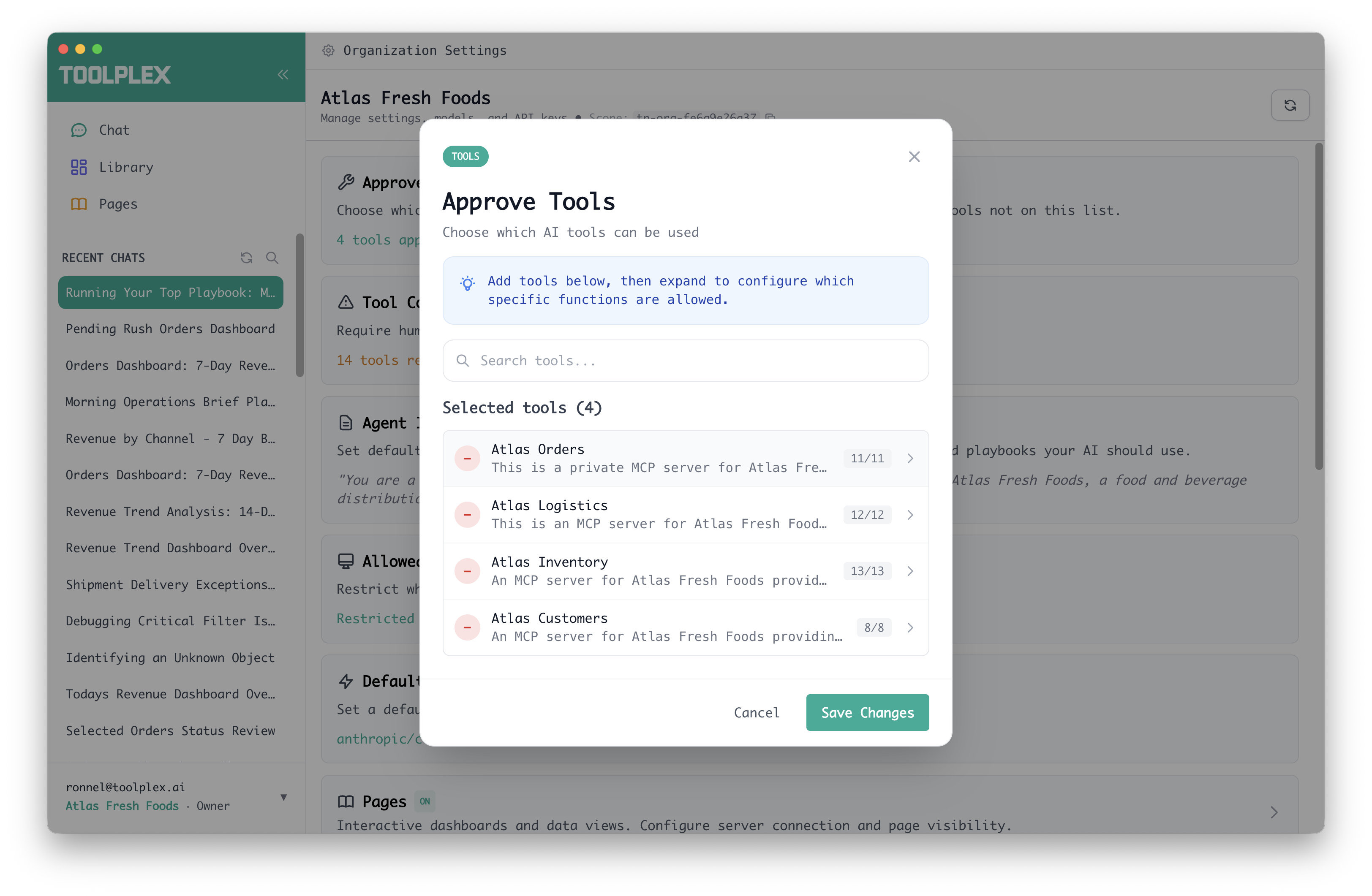
Approved tools
Whitelist which MCP servers your team can use. Only approved tools appear in chat and automations for team members.
You can also set tool overrides to disable specific functions within an approved tool — for example, allowing a database tool but blocking its delete operations.
Tool confirmation
Require human approval before the AI executes specific tools. When enabled, the AI pauses and shows the tool call for review before proceeding. See Human-in-the-Loop for details.
Agent instructions
Set a custom system prompt applied to all conversations across your organization. Use this to include business context, terminology, compliance rules, or standard operating procedures.
Agent instructions support @ mentions to reference specific tools and playbooks. Maximum 10,000 characters.
Allowed models
Restrict which AI models team members can use. If no restrictions are set, all available models are accessible.
Default model
Set the model that new conversations start with for everyone on the team. The default must be from the allowed models list if restrictions are active.
Pages
Enable the Pages feature for your organization. Configure your app server connection (URL and auth token as environment variable references), toggle the feature on, and manage per-role page visibility from the Roles & Permissions section.
Environment variables
Add organization-wide secrets and configuration values that are available to all cloud tools. Useful for API keys, service credentials, and config that your custom tools need at runtime.
Variable names must follow the format A-Z, 0-9, and underscores (e.g., SLACK_WEBHOOK_URL). Values are masked by default in the UI.
API keys
Generate API keys for your organization. These are used for:
- Publishing custom tools to your private registry
- Connecting external clients to ToolPlex
Only Owners and Admins can create, disable, or delete API keys. Members can view existing keys but cannot modify them.
Data isolation
Organization data is fully isolated. Team members see only their own private content and content shared at the organization level. Enterprise customers get dedicated infrastructure with separate data environments.